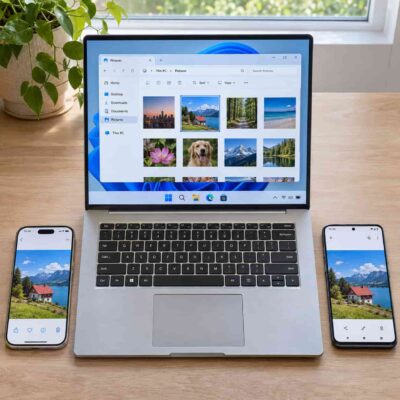
If you spend most of your day on a Windows PC, consider how each phone works with Windows as you browse Smartphones on CompareCelular (smartphones no CompareCelular). Android generally gives you more options. On compatible devices, you can browse files and photos, move documents in either direction, and handle texts through Microsoft Phone Link. An iPhone can also share files, display notifications, and handle basic texting from Windows. The biggest differences show up when you need to browse folders, access your photo library, or keep up with group conversations.
File Transfers
Android gives you several ways to move files between devices. For a wired transfer, connect your phone with a USB data cable, unlock it, and select File transfer from the USB options. You can then copy files using File Explorer. For a wireless transfer, Google’s Quick Share app for Windows can send photos, videos, and documents in both directions. On compatible Windows 11 setups, Android can also appear in File Explorer wirelessly. If you only need to send one file, Quick Share handles the transfer. If you’re sorting a batch of downloads, browsing folders is usually more practical. That makes Quick Share handy when you need to move a PDF to your phone or send a video to your PC for editing.
iPhone users can share individual files between the phone and PC using Microsoft’s Link to Windows app and Phone Link. On the iPhone, select a file and look for Link to Windows in the share menu. On the PC, use the Windows share menu and select Phone Link. If you edit the same documents on both devices, iCloud Drive can keep those files accessible from your iPhone and Windows PC. Android has the edge if you frequently want to open the phone’s folders and decide what to copy from there.
Notifications
Phone Link can display notifications from either platform. On Android, follow the setup prompts to grant notification access, then use Settings > Features > Notifications in Phone Link to customize what appears. On iPhone, pair the phone over Bluetooth, find your PC under Settings > Bluetooth, and enable Share System Notifications for that connection. Once it’s set up, you can view and dismiss iPhone alerts on your PC.
For seeing who messaged you while you work, either phone can do the job. Consider what you want to happen after you see an alert. If your team uses a chat service with a Windows app, you can open that app to respond and limit mirrored alerts on your phone to the ones you need. This also helps avoid seeing the same work notification twice.
Messaging
Android offers a fuller texting experience in Phone Link. It supports standard SMS and MMS so that you can send regular texts and picture messages. RCS support in Phone Link depends on the phone, messaging app, and carrier. Microsoft documents support for select Samsung models using Samsung Messages on compatible networks. If you use Google Messages on your Android phone, Google Messages for web is another way to open those conversations in a Windows browser.
On iPhone, Phone Link is best for one-to-one exchanges, such as confirming a delivery time. It shows messages from when your phone and PC are paired and connected, so you may need to open the phone to find an older exchange. Phone Link also lacks support for sending iPhone group messages. If an incoming group text appears under an individual contact, replying from Windows sends your response to that person alone.
Accessing Phone Photos From Windows
On Windows 11, Microsoft is moving Android photo access from Phone Link to File Explorer. Microsoft lists Android 11 or later for this feature. With a compatible Android phone, enable Show mobile device in File Explorer under Settings > Bluetooth & devices > Mobile devices > Manage devices. Select your phone in File Explorer to browse camera photos, screenshots, and videos stored on the device. Copy the items you want to keep into a folder on your PC. Deleting a file while browsing the linked phone removes it from the phone itself.
For iPhone, iCloud Photos is the easiest option if you already sync your library with Apple. Set up iCloud for Windows to access synced photos and videos, or open iCloud in a browser. For a one-time import, install Apple Devices on the PC, connect your iPhone with a USB cable, unlock it, and approve the trust prompt. Then import the photos and videos through the Windows Photos app. If you use iCloud Photos, Apple says to download the full-resolution originals to your iPhone before importing them over USB.
Which Phone Should You Choose?
Choose Android if you regularly move files, pull screenshots into documents, or want more texting options while working at your PC. If you already use an iPhone and mostly want desktop alerts, occasional replies, and access to synced photos, Phone Link and iCloud Photos cover those needs.
For example, a seller who wants to move product photos into listings every afternoon will benefit from direct folder access. Someone who occasionally needs a vacation photo on the PC can get it from a synced library. Think about the task you repeat most often. If it involves opening your phone’s folders from Windows, Android is the better fit.